AI Flooring Visualizer: Preview Wood, Tile, and Carpet in Your Room
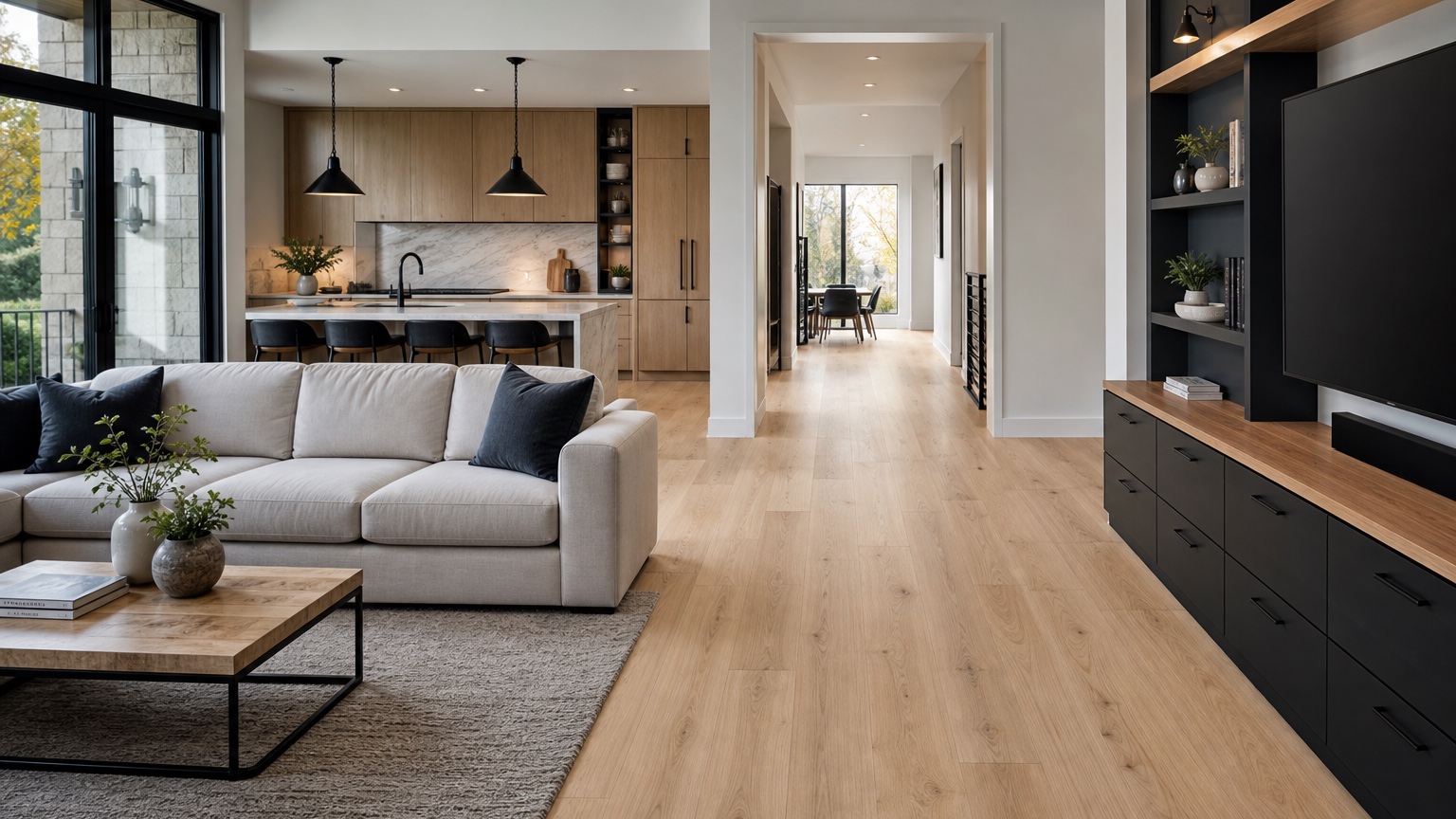
An AI flooring visualizer is useful because flooring is a whole-house commitment, not a small decorating choice. Paint can be changed in a weekend. Pillows can be returned. Flooring affects installation cost, subfloor prep, transitions, baseboards, door clearances, acoustics, cleaning, resale expectations, and how every cabinet, wall color, rug, and furniture piece looks afterward. A sample plank on a kitchen counter cannot show what 700 square feet of that tone will do to the home.
For flooring installers and homeowners, the best use of a visualizer is controlled preview work before money moves. You can test whether light oak brightens a dark hallway, gray tile cools a warm kitchen too much, carpet softens a bedroom, or patterned tile overwhelms a small entry. The image does not confirm wear layer, slip rating, underlayment, moisture tolerance, or installation method. It helps you choose which material families are worth sampling.
RedesAIgn supports this planning stage with 10 AI editors, prompts, remix, reference images, saved prompts, and history. Start with 5 free AI credits and no credit card, then use one-time credit packs if you need more flooring rounds. Commercial use can matter here: installers, real estate teams, landlords, and designers can create discussion drafts without pretending the render is a technical specification.
Begin with the flooring decision that affects the most rooms
Before uploading a photo, define the scope. Is the floor changing in one bedroom, the entire first floor, a kitchen only, a rental unit, a basement, or a room that connects to an existing hallway? Flooring decisions become expensive when a small choice creates a chain reaction. A new kitchen floor may require a transition to the living room. New hardwood in a hallway may expose stair color problems. New carpet may need threshold details.
Make a simple fixed-element list: baseboards stay or change, cabinets stay, wall color stays, doors stay, stair treads stay, fireplace stone stays, and adjacent floors stay or change. If the flooring must continue into another visible room, say that in the prompt. If a threshold makes a material change realistic, mention it. The visualizer should not solve the room by silently removing a transition you will still have to build.
A strong opening prompt might read: “Use this room photo to preview a realistic new floor. Preserve walls, furniture, cabinets, trim, doors, windows, lighting, and layout. Change only the flooring to a matte light natural oak plank that continues through the visible hallway. Keep plank scale realistic.”
If you are still making broad room decisions, compare this with AI room design generator or AI interior design from photo. Once flooring is the main issue, narrow the prompt so the floor does not get hidden inside a general redesign.
Photograph the room so scale and transitions are visible
The source photo should show as much floor area as possible without losing the room context. Stand in a corner, doorway, or hallway and keep the camera level. Include baseboards, door openings, cabinet toe kicks, rugs if they will stay, stairs if visible, and the edge where the floor meets another material. Remove small clutter from the floor, but do not crop out the awkward parts. The awkward parts are usually where installation questions live.
For open-plan spaces, take one wide photo that shows the main room and a second view looking toward the kitchen or hallway. Use each photo separately. A visualizer may create a beautiful open-plan floor in one angle while ignoring a transition hidden behind the camera. Comparing two generated views helps you catch those issues before a showroom visit.
For bedrooms, include closet doors and the hallway threshold. For bathrooms and laundry rooms, include the door saddle, vanity, toilet base, or appliances if relevant. For stairs, photograph the landing and the connection to existing treads. Daylight shows undertone; evening lighting shows whether the material becomes orange, gray, glossy, or dull. Save the prompt that respects the room, then remix the material only.
Test material families before exact products
Start with broad material families, not SKUs. Compare light natural oak, medium brown oak, walnut, maple, warm luxury vinyl plank, limestone-look porcelain, slate-look tile, terracotta-look tile, low-pile wool carpet, loop carpet, or a neutral woven texture. This first round answers whether the home wants warm, cool, light, dark, smooth, patterned, soft, or durable-looking floors.
Keep the rest of the room stable. If the prompt changes wall color, swaps furniture, adds a rug, and brightens the windows, you will not know whether you like the floor. Try: “Preserve the room exactly, including furniture, wall color, trim, cabinets, and lighting. Change only the floor to a warm medium oak engineered wood, matte finish, realistic plank width, no glossy reflections.” Then remix for the next family.
Wood and wood-look floors need special attention to undertone. Yellow oak can brighten a dim room but clash with cool gray walls. Ashy floors can look clean in a showroom and cold at home. Red-brown floors can feel rich or dated depending on cabinets and trim. Tile has its own scale issues. Large-format tile can calm a room, but grout lines and cuts matter. Carpet can warm a bedroom, yet pile texture, vacuum marks, and seam placement will not be fully represented by AI.
Use reference images carefully. A product photo can guide color, grain, or tile mood, but it should not overwrite the uploaded room. Prompt it this way: “Use the reference image only for flooring tone and texture. Apply that direction to the uploaded room while preserving the room layout, furniture, walls, trim, and visible thresholds.”
Use plank direction as a design and installation question
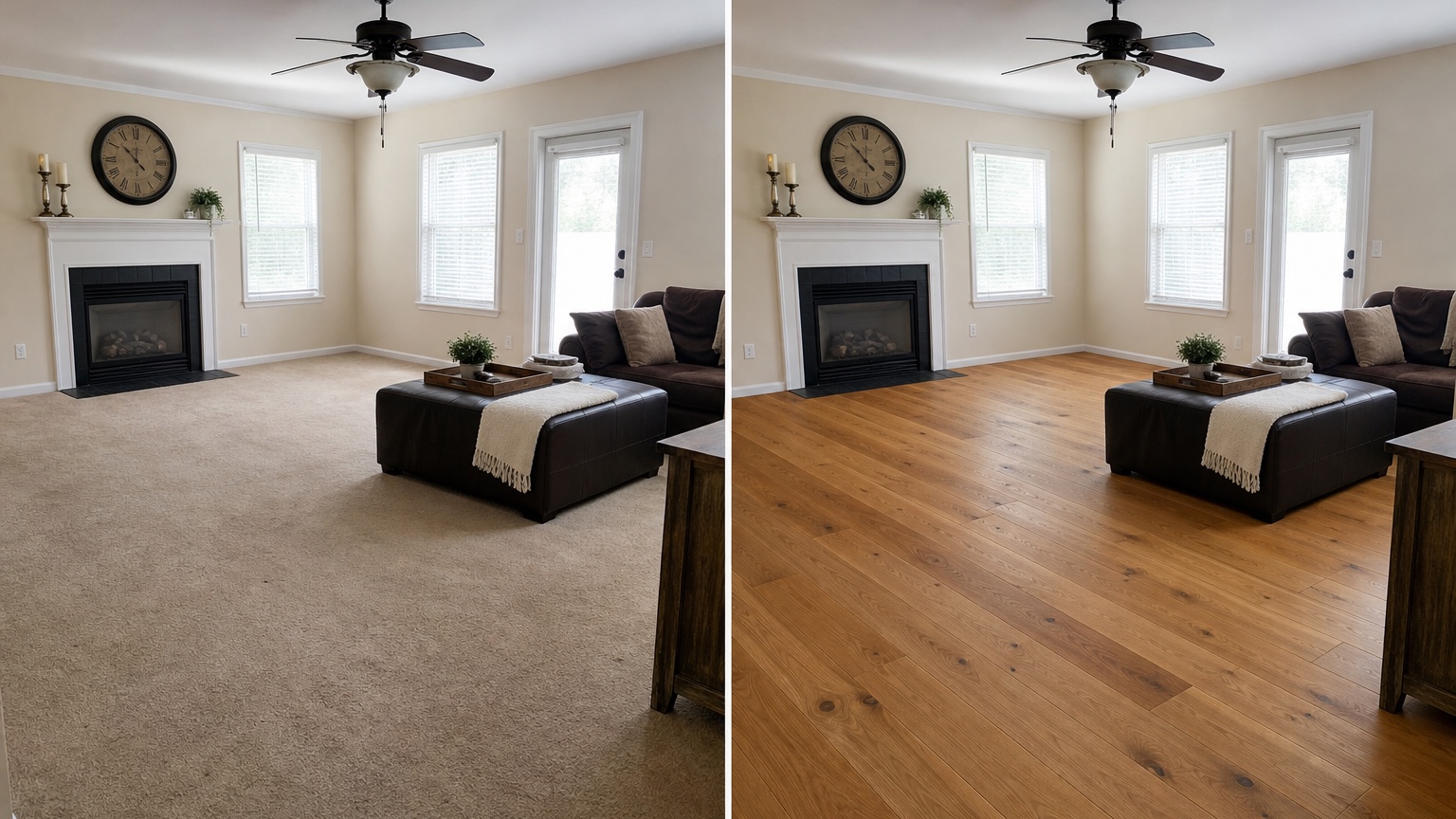
Plank direction changes how a room feels. Running planks along the longest wall can make a narrow room feel longer. Running them from entry toward a view can pull the eye through the house. In open-plan homes, one direction may make the living room feel wide while creating awkward short runs in the hallway. On wood subfloors, structural direction and manufacturer guidance can matter too, so installer review is not optional.
An AI flooring visualizer can help compare visual direction before you ask the technical questions. Prompt for it explicitly: “Show light oak planks running lengthwise from the front door toward the back windows.” Then remix: “same floor, but planks run left to right across the living room.” If the room connects to a hallway, test whether the direction looks continuous or chopped up.
For herringbone, chevron, basketweave, checkerboard, or patterned tile, scale is the main danger. A pattern that looks refined in a close-up may become busy across a large floor. Ask for “realistic plank width,” “not oversized,” “subtle variation,” or “tile size proportional to the room.” If the generated pattern curves around furniture or ignores doorways, treat it as a mood image and ask for a simpler comparison.
Installers can use these views to start a practical conversation: Which direction works with joists? Where will expansion gaps be hidden? How will the pattern meet stairs? Will transitions land under doors or in the middle of openings?
Check transitions before falling in love with a floor
Transitions are where many flooring decisions become real. A living room floor may meet kitchen tile, bathroom tile, carpeted stairs, an exterior door, a fireplace hearth, or an existing hallway. An AI image that shows one continuous surface can be misleading if the actual project requires a reducer, T-molding, threshold, stair nose, or height adjustment.
When prompting, name the boundary. “Keep the existing tile in the kitchen and show a clean transition at the wide doorway.” Or: “Change the kitchen and dining floor to the same warm oak plank, continuing through the opening with no threshold.” Or: “Preview carpet in the bedroom only and keep the hallway wood visible at the doorway.” These prompts make the visual output more useful for installer questions.
Room-to-room continuity is partly visual and partly practical. One continuous floor can make a small house feel larger, but it may not be suitable for wet areas, basements, or rooms with different subfloor conditions. Different materials can make sense when the transition is intentional: tile at an entry, carpet in bedrooms, resilient floor in laundry, wood in living spaces. The key is making the change look designed rather than accidental.
If wall colors are also changing, hold them steady until flooring direction is narrowed. Then use AI wall color visualizer interior to test paints that support the floor. Floors set the undertone foundation; paint should respond to that foundation, not fight it.
Compare flooring against cabinets, rugs, and furniture
Flooring sits under everything, but it visually touches cabinets, baseboards, upholstery, tables, and rugs. In a kitchen, a warm wood-look floor can make white cabinets feel softer or make cream cabinets look yellow. A cool tile can sharpen a modern kitchen or make natural wood cabinets feel orange. For larger remodels, a workflow like AI kitchen remodel visualizer helps when floors, cabinets, backsplash, and wall color all need to work together.
In living rooms and bedrooms, test whether the floor supports the furniture you plan to keep. A dark sofa on a dark floor may need a lighter rug. Pale furniture on a pale floor can look airy or washed out. Patterned rugs may fight strong wood grain. If a major furniture purchase is part of the project, use AI furniture visualizer separately so scale and floor tone are both considered.
Do not ask the visualizer to remove all rugs unless that reflects the final room. Rugs can hide a large portion of flooring, which changes the value of expensive upgrades. If a rug will stay, preserve it and judge the visible border. If you are buying a new rug after the floor, run a second round later.
For carpet, include furniture feet and door swings. Plush carpet may look cozy in a bedroom but conflict with a low door clearance. AI can preview softness and color, but it cannot tell you about cushion density, seam visibility, stair safety, cleaning, or warranty requirements.
Move from image shortlist to product samples
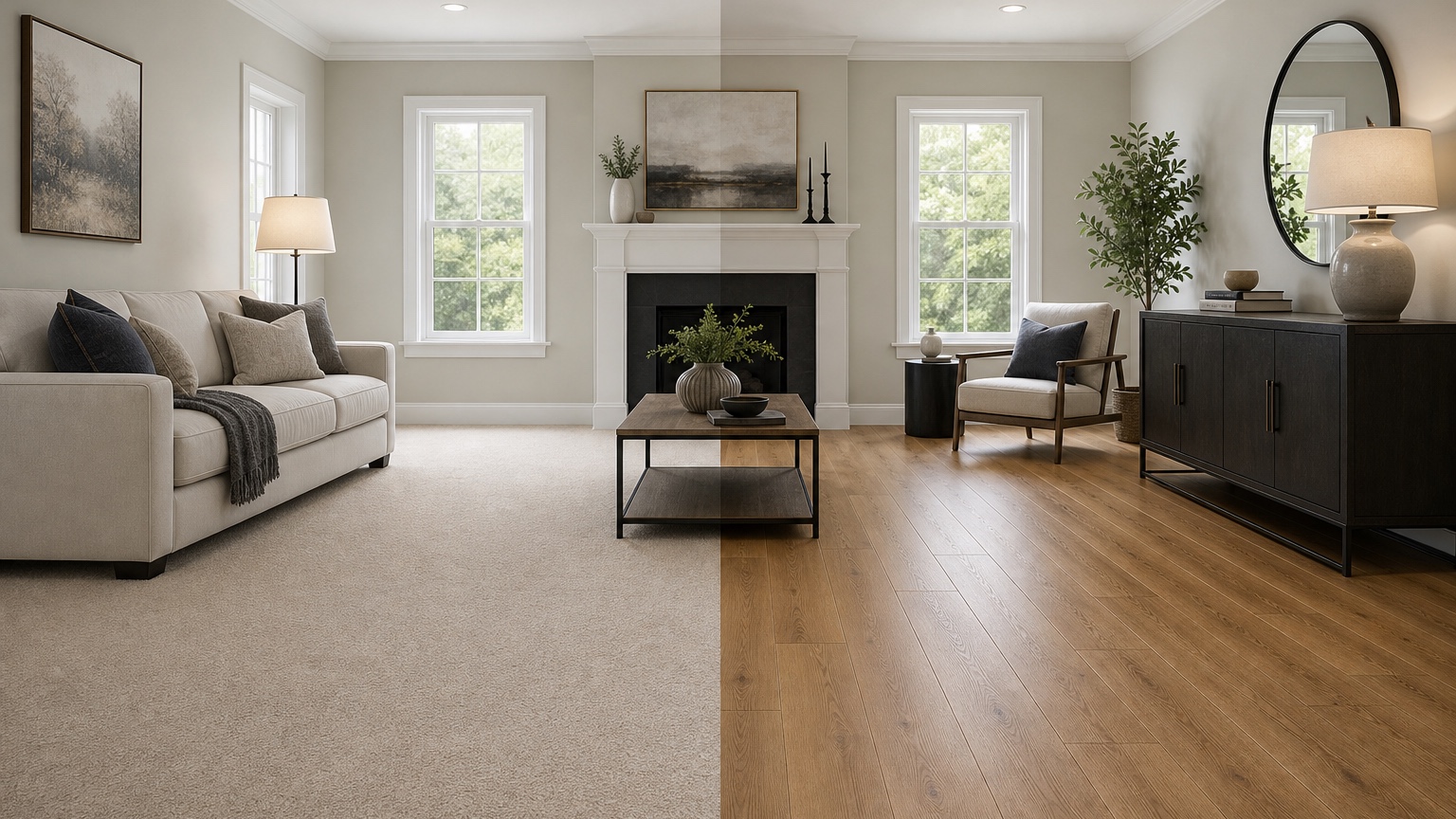
Once the visualizer helps you narrow the family, order real samples. Place them on the floor, not on a table. Move them near cabinets, baseboards, door thresholds, and furniture legs. Look at them in daylight and at night. For wood and wood-look products, compare several boards because variation matters. For tile, check multiple pieces and grout color. For carpet, view the sample flat and upright because pile direction changes the color.
Create a small decision board with the original photo, two or three visualized options, product samples, and notes. Mark each item as “visual preference,” “sample approved,” “installer to confirm,” or “not in scope.” This prevents a generated image from being mistaken for a purchase order. Include dimensions, room list, existing floor type, moisture concerns, stairs, and whether baseboards will be removed or shoe molding added.
Homeowners should bring this board to a showroom or installer meeting. Installers can use it to ask better questions: Is the subfloor flat enough? What is the transition height? Will doors need trimming? Are appliances being removed? Does the product work below grade? What underlayment is required? How will expansion gaps, vents, closets, and stair edges be handled?
Prompt recipes for flooring choices
For a wood floor preview: “Use this room photo to preview a realistic flooring change. Preserve furniture, walls, trim, doors, windows, cabinets, and lighting. Change only the floor to matte light natural oak planks, realistic width, subtle grain variation, running from the doorway toward the windows.”
For tile in a kitchen or entry: “Keep the room layout, cabinets, wall color, trim, furniture, and lighting unchanged. Replace only the floor with warm limestone-look porcelain tile, proportional large-format scale, subtle grout lines, matte finish, and a clean transition at the visible doorway.”
For carpet in a bedroom: “Use this bedroom photo to preview new carpet. Preserve wall color, bed, furniture, trim, doors, closet, and lighting. Change only the floor to a warm neutral low-pile carpet, realistic texture, with the hallway threshold still visible.”
For room-to-room continuity: “Preview the same medium oak plank flooring continuing from the living room through the visible hallway. Preserve all furniture, walls, trim, doors, and lighting. Keep plank direction consistent and show realistic scale at the transition.”
Where RedesAIgn fits before ordering flooring
Use RedesAIgn before the decision becomes a shipment, deposit, or demolition date. Upload a clear room photo, write a scope-aware prompt, save the wording that keeps the room accurate, and remix material family, tone, direction, or transition one variable at a time. History helps you return to the clearest version, and reference images can guide product mood without replacing the actual room.
The 5 free credits with no credit card are enough for a first comparison set. If you are reviewing several rooms, preparing installer options, or presenting choices to a client, one-time credit packs let you continue without a subscription. The goal is not a perfect render. The goal is a better shortlist, better samples, and sharper installer questions before flooring becomes the most visible commitment in the house.
FAQ: AI flooring visualizer
What is an AI flooring visualizer?
An AI flooring visualizer uses a room photo and written prompt to preview flooring options such as wood, tile, vinyl, carpet, stone-look materials, patterns, and room-to-room continuity before products are purchased.
Can it choose the exact flooring product for me?
No. It can help compare visual direction, but it does not verify product performance, subfloor conditions, installation method, slip rating, wear layer, moisture limits, warranty rules, or final color accuracy. Use it with physical samples and installer review.
How do I get more realistic flooring previews?
Use a clear wide photo, include transitions and baseboards, preserve the rest of the room in the prompt, specify material family and plank or tile scale, and remix one variable at a time.
Try these prompts in redesAIgn
Redesign this room with warm neutrals, layered lighting, and a functional seating layout.
Keep the architecture, but update furniture, rug, and wall color for a calm modern look.
Show a before-to-after concept with better traffic flow and fewer bulky pieces.
Related guides
- AI Bathroom Remodel Visualizer for Tile, Vanity, and Lighting Ideas
Visualize bathroom remodel ideas from a real photo with RedesAIgn. Compare finishes, fixtures, and layout limits before ordering materials.
- AI Bedroom Design Generator for Layout and Decor Ideas
Generate bedroom design concepts from your room photo with RedesAIgn. Compare layout and furniture directions before you buy or remodel.
- AI Dining Room Design Ideas From a Photo
Use AI dining room design to plan table size, chair clearance, chandelier alignment, rugs, storage, and lighting from a real room photo.
- AI Furniture Visualizer: Preview Furniture in Your Room Photo
Use an AI furniture visualizer to preview scale, placement, color, material, and fit in your room photo before buying or presenting furniture.
- AI Interior Design From Photo: Redesign Any Room Visually
Use AI interior design from photo workflows to preview room styles, furniture layouts, finishes, and decor ideas before buying anything.